
Table of Contents
- Why Pausing Beats Canceling Your Coffee Subscription
- What You'll Need Before You Pause Coffee Subscription Deliveries
- Step 1: Log In and Find Your Subscription Dashboard
- Step 2: Navigate to Account Settings and Delivery Schedule
- Step 3: How to Skip Coffee Shipment for One Delivery Only
- Step 4: Set Your Coffee Subscription Pause Duration and Resume Date
- Step 5: Confirm the Pause and Watch for Email Notification
- Coffee Subscription Cancellation Policy: When to Cancel Instead
- Frequently Asked Questions
Last Updated: September 8, 2026
Flexibility is the quiet luxury of a good coffee subscription. Life gets busy, travel plans appear, or your coffee cabinet is already full. The ability to pause coffee subscription deliveries without losing your roast preferences or payment details is what separates a service that works for you from one you cancel out of frustration.
This guide walks through the exact steps to pause coffee subscription deliveries across the platforms most specialty roasters use. You will learn how to skip a single shipment, set a pause duration, and confirm everything went through.
Most people assume pausing requires a phone call or support ticket. In practice, a few clicks in your subscription dashboard handle most scenarios.
Why Pausing Beats Canceling Your Coffee Subscription
Canceling forces you to rebuild everything later. Your roast preferences, delivery cadence, and payment method all start from zero when you resubscribe. Pausing preserves your setup.
A pause is also reversible. Most platforms let you set a resume date, so the subscription reactivates automatically. You do not have to remember to come back.
Some roasters lock in pricing or offer perks for active subscribers. Canceling can forfeit those benefits. Pausing keeps your account in good standing, which often protects your current rate.
What You'll Need Before You Pause Coffee Subscription Deliveries
Gather these items before opening your account settings. Preparation takes two minutes.
- Account credentials: Your email and password, or access to the magic link your roaster sends.
- Customer portal access: Most roasters use a dedicated subscription portal separate from the main shop. Bookmark it if you can.
- Your next delivery date: Check the most recent confirmation email to know which shipment you are postponing.
- The billing cycle cutoff: Many platforms require changes before a certain time on the day before your shipment processes. Find this deadline in your account dashboard.
Subscription management typically lives under account settings or a customer portal link in your order confirmation emails. If you cannot locate it, search your inbox for "manage your subscription."
Step 1: Log In and Find Your Subscription Dashboard
Log in with the credentials tied to your original order. If you checked out as a guest, use the link in your confirmation email to create a password and access your account.
Look for a navigation item labeled "Subscriptions," "Manage Subscription," or "Delivery Schedule." Some platforms place this under a profile icon; others include it in the main menu.
If you have multiple products on recurring order, the dashboard lists each separately. Select the specific coffee subscription you want to pause. Changes rarely apply across all subscriptions.
Step 2: Navigate to Account Settings and Delivery Schedule
The delivery schedule is your command center for upcoming shipments. Knowing the two primary interface types will save you from aimless clicking.
Type 1: The Dedicated Customer Portal
Most specialty roasters use a dedicated subscription portal separate from their main e-commerce storefront, often powered by third-party services. Find the link in your order confirmation or shipping notification emails, labeled "Manage Subscription" or "Customer Portal."
Once inside, the layout is usually dashboard-first, showing your active subscriptions, next delivery date, and payment method. Look for these menu labels:
- "Subscriptions" or "My Subscriptions": This is the main list of all your active recurring orders.
- "Delivery Schedule" or "Upcoming Deliveries": This shows a calendar or list view of your next shipments.
- "Payment Methods": This is where you manage billing, but it is also where you can see the billing cycle date associated with your subscription.
Type 2: The Integrated Account Dashboard
Other roasters build subscription management into their main website's account area. Log in and navigate to "My Account," then look for a section called "Auto-Delivery," "Recurring Orders," or "Manage Deliveries."
These controls are often nested under a profile icon in the top right corner. If you only see options like "Orders" and "Addresses," your subscription is likely managed through a separate portal.
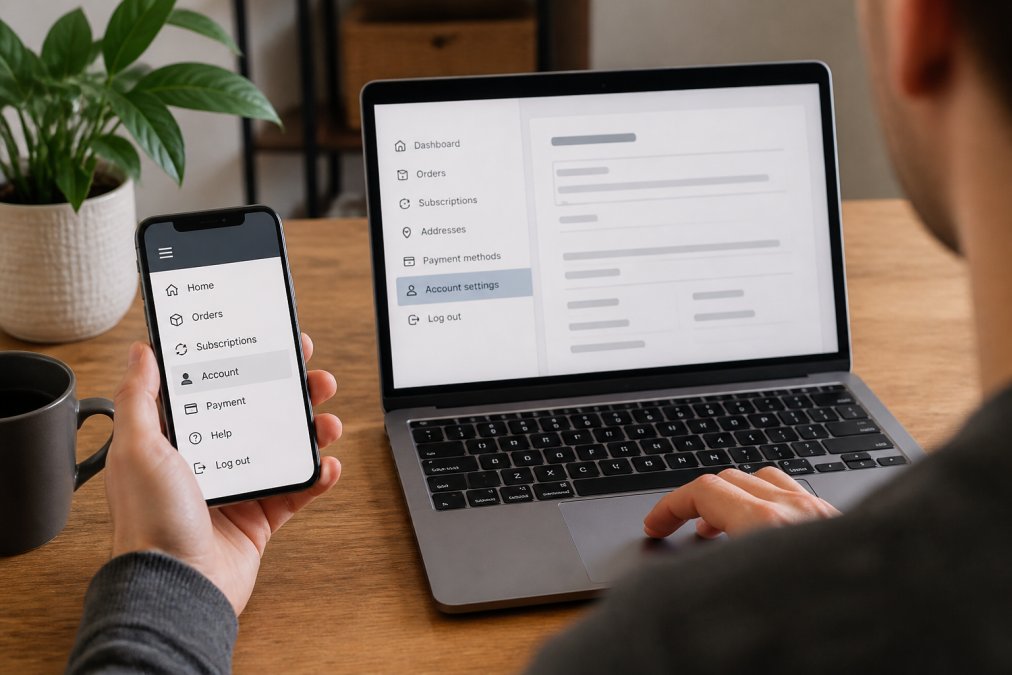
Mobile App vs. Browser Differences
The path in a roaster's mobile app often differs from the desktop browser experience. Many apps prioritize the shop front, burying subscription controls deeper in the menu.
- In an app: Navigate to your "Profile" or "Account" tab, usually located in the bottom right corner of the screen. Look for a gear icon or a "Settings" link. Subscription management is often under a sub-menu called "Manage Subscription" or "Delivery Settings." If you cannot find it, check the app's main hamburger menu (three horizontal lines) for a "Subscriptions" link.
- In a browser: The full-featured website almost always has the most complete subscription management tools. If you are struggling with the mobile app, switch to a desktop browser. You will likely find more options, including the ability to set a specific resume date, which some apps do not support.
Step 3: How to Skip Coffee Shipment for One Delivery Only
Skipping moves your next delivery to the following cycle without changing your subscription frequency. Use this when you have enough beans but want deliveries to resume as normal afterward.
- Open your subscription dashboard and select the active subscription.
- Locate the next upcoming shipment in the delivery schedule.
- Click "Skip" or "Skip This Delivery" next to that shipment date.
- Confirm the change when prompted. Some platforms ask for a reason, though most make this optional.
- Watch for the delivery schedule to update, showing the new expected date for your following shipment.
The skip function does not adjust your billing cycle permanently. Your next charge occurs on the rescheduled date, not the original one.
Most platforms allow skips up to the day before a shipment processes. If the skip button appears grayed out, your shipment likely entered the fulfillment stage. Contact support directly.
Step 4: Set Your Coffee Subscription Pause Duration and Resume Date
A pause stops all future deliveries until you reactivate or a resume date arrives. Think of it as putting the subscription on hold rather than postponing a single order.
When you select "Pause," the platform typically asks how long you want to pause coffee subscription deliveries. Options usually include 30, 60, or 90 days, though some services allow an indefinite hold.
Set a resume date that appears on your calendar. Most platforms handle the resume automatically, but confirming the date gives you peace of mind.
During the pause, your saved roast preferences and delivery interval remain intact. This is the core advantage over canceling, which wipes your settings clean.
Step 5: Confirm the Pause and Watch for Email Notification
A reliable platform confirms your pause with an on-screen message and a follow-up email. If you see neither, the pause may not have registered.
What Your Confirmation Email Should Contain
Within a few minutes of pausing, check your inbox for a confirmation email. A proper one will state the following:
- The subscription ID or name: This confirms which of your subscriptions is now paused.
- The pause start date: This is the date the pause takes effect, which is usually immediate.
- The resume date: This is the date your deliveries will automatically restart. If you chose an indefinite pause, the email should state that your subscription is on hold until you manually reactivate it.
- The next billing date: This is the most critical piece of information. The email should explicitly state that no further charges will occur until the pause period ends. If the email mentions a charge date that falls within your pause window, contact support immediately.
Save this email until the pause completes. It is your proof of the change if a billing error occurs later.
The Financial Impact: Pro-rated Refunds vs. Stopped Charges
Whether pausing triggers a refund for a shipment you have already paid for depends on where you are in the billing cycle.
- If you pause before the billing date: You will not be charged for the upcoming shipment. The pause simply stops the next charge from processing.
- If you pause after the billing date but before the shipment date: You have already paid for the next delivery. In this case, you are not entitled to a refund for that specific shipment. Instead, the pause will prevent future charges. You will still receive the shipment you paid for, and your subscription will resume after the pause period ends.
- Pro-rated refunds are rare: Most subscription platforms do not offer pro-rated refunds for a pause. The system is designed to stop future charges, not to reverse completed transactions. If you believe you were charged in error, contact the roaster's support team directly.
Troubleshooting: The Pause Button is Grayed Out or Missing
A grayed-out or missing "Pause" button is rarely a technical glitch. It is almost always a timing issue related to your fulfillment window.
Most roasters begin processing orders 24 to 72 hours before the scheduled shipment date. Once an order enters the fulfillment stage, the system locks the subscription to prevent changes.
If you encounter this, you have two options:
- Contact support immediately: Explain that you need to pause before the next shipment. Many roasters can intervene if the order has not yet been handed to the shipping carrier.
- Skip the shipment instead: If the pause is locked, the "Skip" function may still be available. Skipping will push the delivery to the next cycle, effectively giving you the same result as a pause for a single shipment.
Verify in Your Dashboard
Return to your subscription dashboard to verify the pause took effect. The next delivery date should show a paused status or a date after your resume date. If the original date still appears, repeat the process or reach out for assistance.
Coffee Subscription Cancellation Policy: When to Cancel Instead
Pausing suits most situations, but cancellation makes sense if you are permanently switching roasters or need to cut recurring expenses entirely.
Review your roaster's cancellation policy before committing. Most services allow cancellation at any time, but some require notice before the next billing cycle.
Cancellation also matters if you want to change to a different coffee subscription entirely. Some platforms require canceling one before starting another.
Canceling mirrors pausing: navigate to the subscription dashboard, select the subscription, and choose "Cancel." Confirm your choice and watch for the cancellation email. Your subscription remains active until the end of the current billing period unless the policy states otherwise.
| Scenario | Best Choice | Why |
|---|---|---|
| Traveling for 3 weeks | Skip one shipment | Resumes automatically next cycle |
| Stocked up on beans | Pause for 30-60 days | Keeps preferences and rate intact |
| Switching roasters permanently | Cancel | Removes the account entirely |
| Budget tightening | Pause | Stops charges without losing setup |
Flexibility in subscription management comes down to knowing your options before you need them. Skipping handles short gaps, pausing covers extended breaks, and canceling serves permanent exits.
Frequently Asked Questions
Can I pause my coffee subscription instead of canceling it?
Yes, most specialty coffee roasters let you pause coffee subscription deliveries rather than canceling outright. Pausing stops future shipments while keeping your roast preferences, delivery schedule, and account details intact. This works well when you're traveling or have extra beans at home. Use the subscription dashboard to set a pause duration and resume date. Unlike canceling, pausing means you won't need to re-enter your payment method or rebuild your flavor profile when you return.
How far in advance do I need to pause my coffee delivery?
Most roasters require you to pause before the billing cycle starts, typically 48 to 72 hours before the scheduled shipment date. The exact deadline depends on the roaster's shipping window and order management system. Check your subscription dashboard for the modification cutoff time. If you miss the deadline, the shipment processes and you get charged for that cycle. You can then skip the following delivery instead. When in doubt, pause as soon as you know you won't need coffee.
Will I be charged if I pause my coffee subscription after a billing cycle starts?
If your billing cycle has already started and the roaster has processed payment, you will likely be charged for that shipment even if you pause afterward. Pausing typically takes effect from the next billing cycle forward, not the current one. Some roasters offer a short grace period, but you should not count on a refund after the shipment is prepared. Review the cancellation policy and payment terms in your account settings to understand exactly when charges apply.
Can I skip a single coffee delivery without pausing the entire subscription?
Yes, skipping a single shipment is different from pausing and is ideal when you only need to miss one delivery. Use the skip shipment option in your subscription dashboard, select the upcoming delivery you want to skip, and confirm the change. Your subscription remains active and the next scheduled shipment proceeds as normal. This is useful when you're away for a week or have a full coffee container. You can typically skip multiple consecutive deliveries if needed.
Managing a coffee subscription should feel effortless, not like a second job. Understanding how to pause, skip, or cancel gives you complete control over your deliveries without losing the benefits of your subscription. Gilded Grind offers freshly roasted, nature-inspired beans with flexible delivery options and a range of roast profiles from light to dark, so you can adjust your schedule as your coffee needs change. Get started with Gilded Grind and enjoy premium coffee that fits your rhythm.


